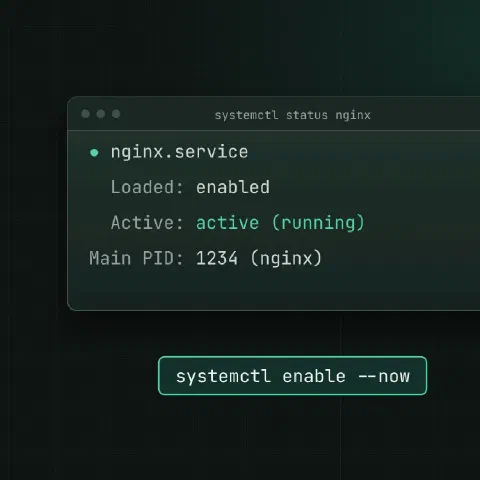
Services
systemctl status nginx
sudo systemctl start nginx
sudo systemctl stop nginx
sudo systemctl restart nginx
sudo systemctl reload nginx            # re-read config without dropping connections
sudo systemctl enable --now nginx      # start now and at boot
sudo systemctl disable --now nginx
sudo systemctl mask nginx              # can't be started at all, even by another unit
sudo systemctl unmask nginx
Check
systemctl is-active nginx              # active / inactive / failed (for scripts)
systemctl is-enabled nginx
systemctl --failed                     # everything that failed
systemctl list-units --type=service --state=running
systemctl list-unit-files --state=enabled
Edit units
systemctl cat nginx                    # the unit file and every override
systemctl show nginx -p MainPID -p Restart -p MemoryCurrent
sudo systemctl edit nginx              # add an override in nginx.service.d/override.conf
sudo systemctl edit --full nginx       # copy the whole unit to /etc and edit it
sudo systemctl daemon-reload           # after changing unit files by hand
sudo systemctl revert nginx            # drop all local overrides
A typical override: restart on failure and raise the open-files limit.
[Service]
Restart=on-failure
RestartSec=5
LimitNOFILE=65535
Overrides survive package upgrades; editing the file in /lib/systemd/system doesn’t.
Dependencies
systemctl list-dependencies nginx
systemctl list-dependencies --reverse postgresql   # what needs it
systemd-analyze blame | head                       # slowest units at boot
systemd-analyze critical-chain
systemctl get-default                              # multi-user.target or graphical.target
Timers
systemctl list-timers --all
systemctl status backup.timer
sudo systemctl start backup.service      # run the job now
systemd-analyze calendar 'Mon *-*-* 03:00'   # check when a schedule fires
Remote
systemctl -H admin@host status nginx # over SSHUser services
Any user can run their own services without root, under a per-user systemd instance. They start when the user logs in and stop at their last logout, unless lingering is on.
[Unit]
Description=Queue worker

[Service]
ExecStart=%h/app/bin/worker --config %h/app/worker.yaml
Restart=on-failure
Environment=APP_ENV=production

[Install]
WantedBy=default.targetsystemctl --user daemon-reload
systemctl --user enable --now worker
systemctl --user status worker
systemctl --user list-units --type=service
journalctl --user -u worker -f
loginctl enable-linger alice # start at boot, keep running after logout
loginctl show-user alice -p Linger| Item | System service | User service |
|---|---|---|
| Unit files | /etc/systemd/system/ | ~/.config/systemd/user/ (yours), /etc/systemd/user/ (all users) |
| Commands | sudo systemctl … | systemctl --user …, no sudo |
| Install target | WantedBy=multi-user.target | WantedBy=default.target |
| Runs as | User= in the unit, or root | Always the owner; User= is not allowed |
| Starts | At boot | At login, or at boot with lingering |
| Logs | journalctl -u name | journalctl --user -u name |
| Ports below 1024 | Allowed | Not without extra capabilities |
%h expands to the user’s home directory, so the same unit works for every user. User timers work the same way: put name.timer next to the service and enable it with --user.
# manage another user's services as root
systemctl --user -M alice@ status worker        # systemd 248 and newer
sudo -u alice XDG_RUNTIME_DIR=/run/user/$(id -u alice) systemctl --user status worker
machinectl shell alice@                         # a full login session as alice

# enable a unit for every user (it must be in /etc/systemd/user/)
sudo systemctl --global enable worker
systemctl --user after su or sudo -i fails with “Failed to connect to bus”, because there is no login session for that user. Log in over SSH as them, or use one of the commands above. The first two only work while that user’s systemd instance is running: they’re logged in, or lingering is on.
Related
- Linux pipes cheat sheet: redirects and chaining commands
- journalctl cheat sheet: reading and filtering logs
- Linux processes cheat sheet: ps, kill, signals and jobs
Comments
Sign in with Google, GitHub or Facebook to comment.
Loading comments…