xargs reads items from stdin and passes them as arguments to a command. It’s how you feed the output of find, grep -l or pgrep to commands that don’t read stdin, like rm, cp or kill.
Basics
echo "a b c" | xargs echo               # echo a b c
ls *.log | xargs wc -l                  # one wc with all files as arguments
cat hosts.txt | xargs -n1 ping -c1      # one ping per host
pgrep -f worker.py | xargs -r kill      # nothing to kill: don't run at all
Without a command, xargs runs echo.
Flags
| Flag | What it does |
|---|---|
-0 | Items end with a NUL byte; pair with find -print0, grep -lZ |
-d '\n' | Split on newlines only, so spaces stay inside items (GNU) |
-r | Don’t run the command when input is empty (GNU) |
-n 1 | At most one item per command |
-L 1 | One input line per command |
-I{} | Run once per item, putting it where {} is |
-P 4 | Run up to four commands at once |
-t | Print each command to stderr before running it |
-p | Ask before running each command |
-a file | Read items from a file instead of stdin |
-s 100000 | Maximum command line length |
Spaces and quotes
# breaks on "my file.txt": xargs splits on spaces
find . -name '*.txt' | xargs rm

# safe: NUL-separated
find . -name '*.txt' -print0 | xargs -0 rm -f

# grep -l with NUL output
grep -rlZ 'old.example.com' /etc/nginx/ | xargs -0 sed -i 's/old.example.com/new.example.com/g'

# lines that contain spaces, no NULs available
xargs -d '\n' -a files.txt rm -f
Default xargs also treats quotes and backslashes specially, so a file named it's.txt fails without -0 or -d '\n'.
Placeholders
# copy each file into a backup directory
find /etc/nginx -name '*.conf' -print0 | xargs -0 -I{} cp {} /backup/nginx/

# rename with a shell, for anything more complex
ls *.jpeg | xargs -I{} sh -c 'mv "$1" "${1%.jpeg}.jpg"' _ {}

# the same host list against several commands
xargs -I{} ssh alice@{}.example.com uptime < hosts.txt
-I implies one item per command, so it’s slower than plain xargs for thousands of items.
Parallel jobs
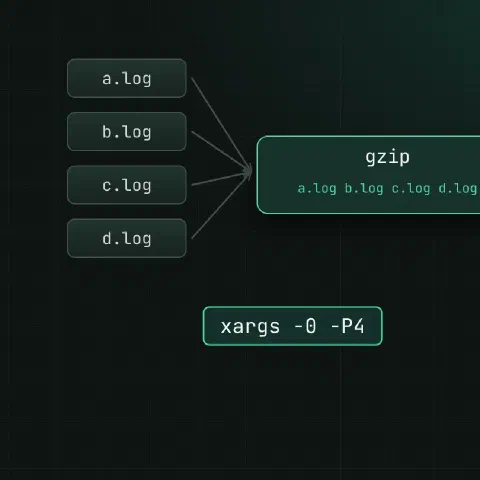
# compress logs, 4 at a time
find /var/log/app -name '*.log' -mtime +1 -print0 | xargs -0 -P4 -n1 gzip

# check many URLs at once
xargs -P8 -I{} curl -s -o /dev/null -w '%{http_code} {}\n' {} < urls.txt

# use every CPU
find . -name '*.png' -print0 | xargs -0 -P"$(nproc)" -n1 optipng -quiet
Output from parallel jobs can interleave. Write each job’s output to its own file if you need it clean.
Dry runs
find /tmp -name '*.tmp' -mtime +7 -print0 | xargs -0 -t echo rm      # see the commands
find /tmp -name '*.tmp' -mtime +7 -print0 | xargs -0 -p rm           # confirm each one
Put echo in front of the command for a dry run, then remove it.
xargs vs -exec
| Want | Use |
|---|---|
Run a command on files find found | find … -exec cmd {} + (no xargs needed) |
| Parallel jobs | xargs -P |
Input from something other than find | xargs |
| One command per file, simplest form | find … -exec cmd {} \; |
Keep in mind
rmwith an empty argument list is harmless, but many commands aren’t. Use-r(GNU) when input may be empty.- Exit code 123 means at least one command failed; 124 means a command exited with 255 and xargs stopped.
- macOS and BSD
xargshave no-d. They accept-rfor compatibility and skip the command on empty input anyway.
Related
- Linux pipes cheat sheet: redirects and chaining commands
- find cheat sheet: finding files by name, age and size
- grep cheat sheet: searching text
- Linux processes cheat sheet: ps, kill, signals and jobs
Comments
Sign in with Google, GitHub or Facebook to comment.
Loading comments…